VPN Installation Guide: Android (2 Steps)
Step 1: Install Secure Access
Get Secure Access from Google Play Store
Step 2: Configure Secure Access on Android
- Open the Secure Access client. Select the Add a New Connection button.
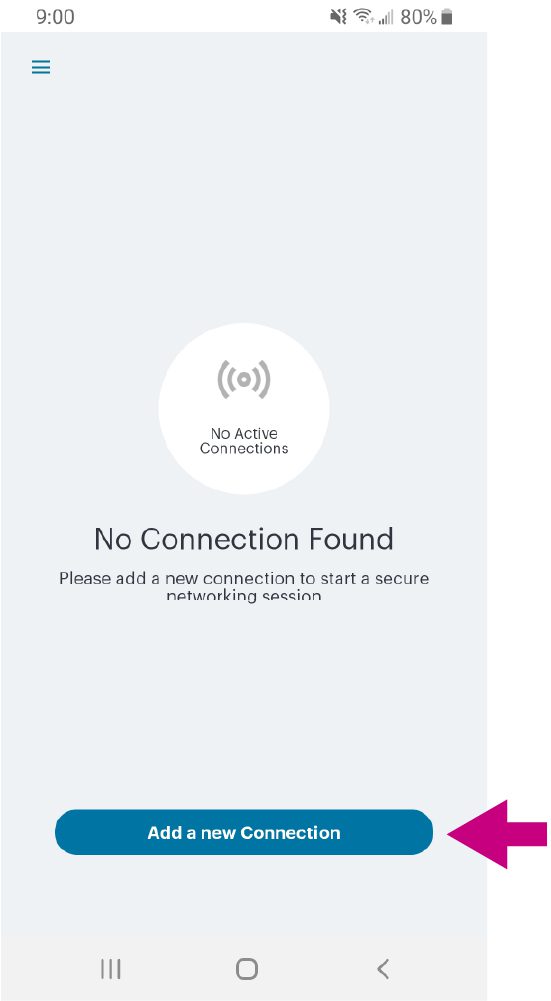
- Enter a Connection Name (we recommend “Library VPN”) and the URL: vpn.library.ucdavis.edu. Do not alter the other fields. Select Connect to save this connection.

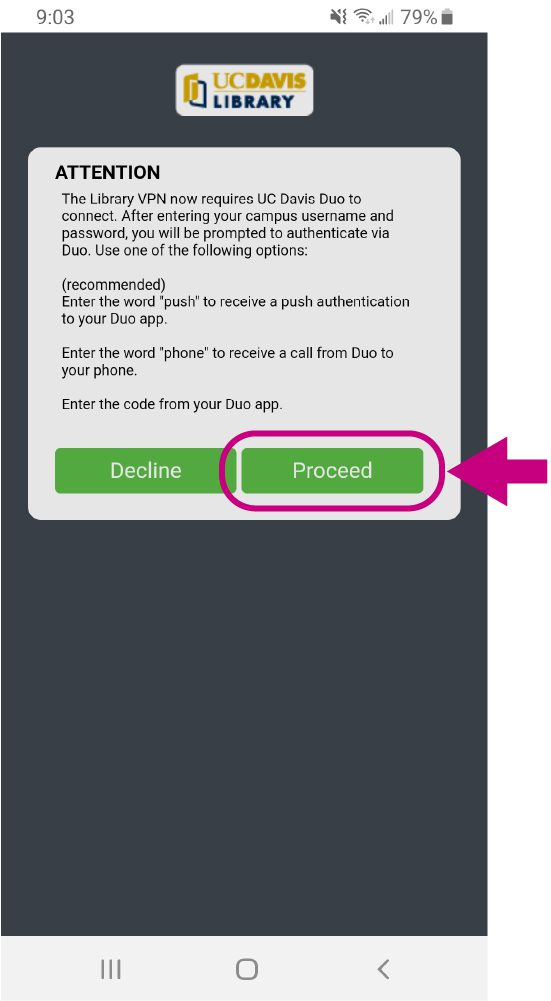
- The app will inform you that you need UC Davis Duo to connect. If you’re not sure how Duo works, see the “Getting Started” section of our Library VPN FAQ for more information. Select Proceed.
- When prompted, enter your UC Davis email address and password then click Sign In. A prompt for Duo will come up. Complete the Duo authentication to complete the connection. Note: UCDH users that have an @health.ucdavis.edu email account MUST use their @ucdavis.edu email address for Library VPN authentication. The @health.ucdavis.edu address will not work.
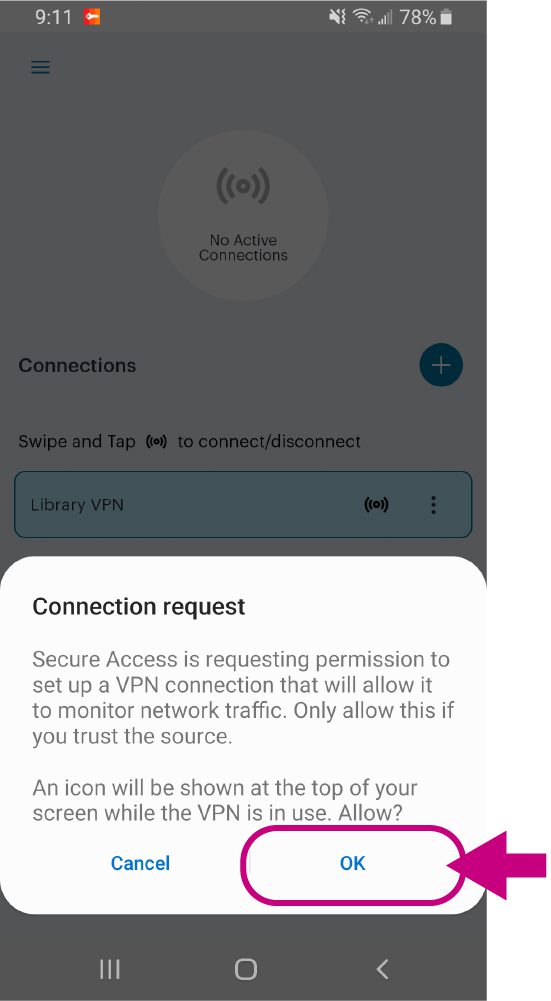
- Select OK to accept the connection request.
- Once the connection is established, the library VPN will display as an active connection on the app home screen.

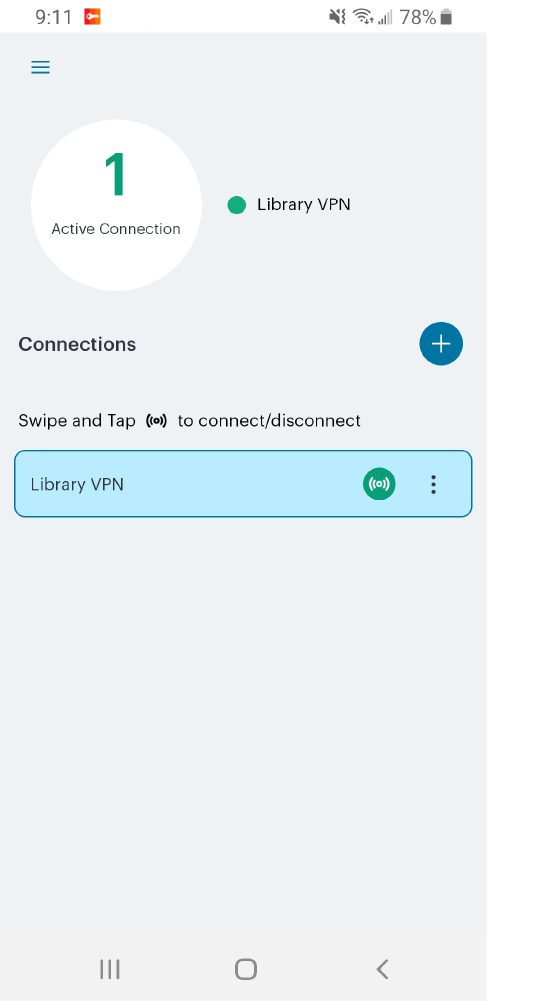
Congratulations, you are now connected to the library VPN and have access to all of the library’s online resources!